
How to
Block dates
How to close dates without a guest, for example for repairs or your own use.
A block closes dates in the calendar. Guests see these dates as taken, without the reason.
Add a block
- Open the property in the dashboard and go to the Calendar tab.
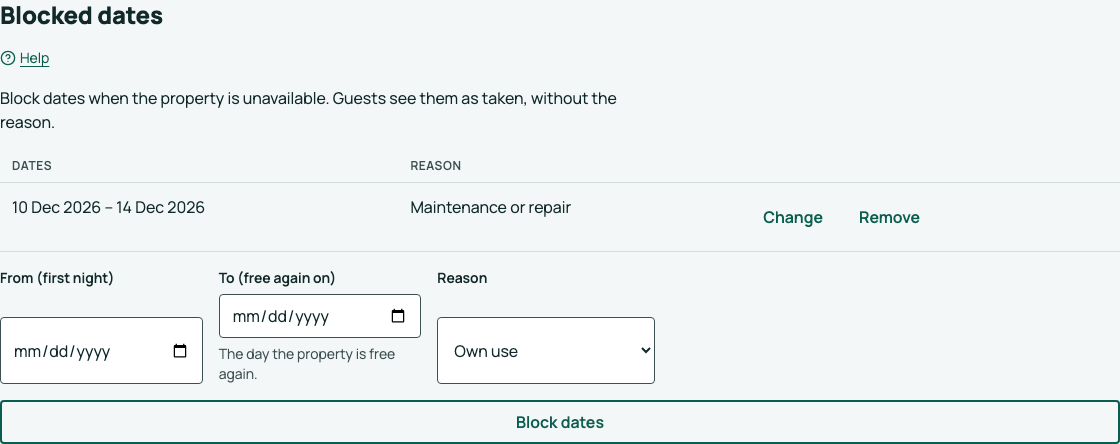
- Under Blocked dates, click Block dates.
- Select From (first night) and To (free again on). "To" is the day when the property is free again.
- Select a reason: Sold outside LocalBook, Own use, Maintenance or repair or Other reason.
- Click Save.
Change or remove a block
- To move the dates, click Change.
- To make the dates free, click Remove.
If a block has started, its start does not change. You can only make the end earlier or later. When you remove a block that has started, it ends today.
Limits
- A block cannot start in the past.
- A block cannot overlap a confirmed stay or a different block.
- New requests do not stop a block, because they do not take dates.