
How to
Answer a request
How to confirm or reject a request from a guest and what the guest sees.
Before you start
A request is not a booking. It does not take the dates, and the guest has not paid. First, contact the guest (the phone or e-mail in the request) and agree the details.
When you confirm, reject or cancel, LocalBook sends an e-mail to the guest. The reply of the guest goes to you.
Find the request
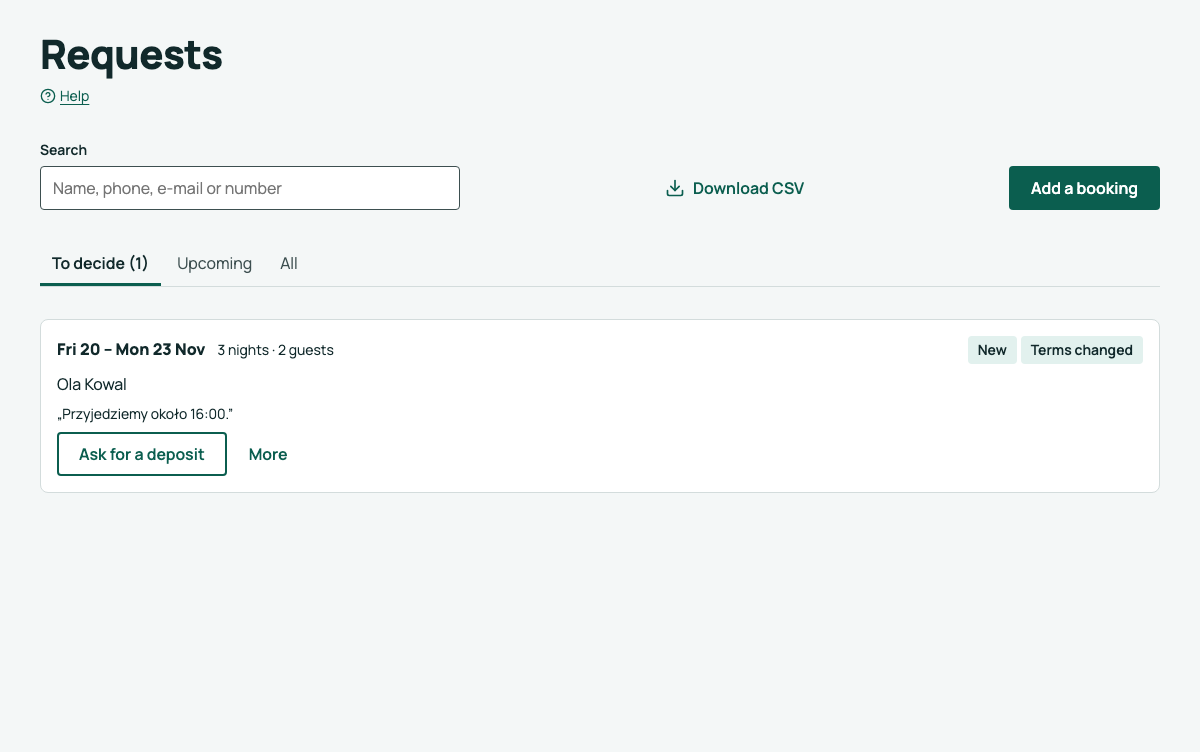
- In the menu, click Requests. The list opens on the To decide tab: new requests and stays waiting for a deposit, nearest arrival first.
- Upcoming shows confirmed stays, All the whole history with the Status field. If you have more than one property, you can use the Property field.
- To find a person, type the name, phone, e-mail or request number in Search.
Each request shows the dates, the number of guests, the name and the start of the message. More opens the details: the number, the contact data with Call and Write an e-mail, the guest's language, the whole message and all the actions.
Confirm
- Next to the request, click Confirm (or open More).
- If the property imports bookings from Booking.com or Airbnb, a window opens. For some seconds, LocalBook checks the calendars of these sites. When the result shows, click Confirm stay.
The message "Stay confirmed. The dates are taken in the calendar." shows. The dates are now taken on the property page and in the channel calendars.
If you see "Cannot confirm: a confirmed stay already takes these dates", a different stay took these dates first. Offer the guest different dates.
Ask for a deposit
If the property has deposit settings, the request shows Ask for a deposit, and the details also Confirm without deposit. See Ask for a deposit.
Reject
- Next to the request, click More, then Reject in the details.
- You can enter a Reason for the guest (500 characters maximum). The guest sees it in the e-mail.
- Click Reject request.
A request for taken dates
If a request shows Overlaps the stay: … (or a block, or a booking from another site), the dates are already taken and you cannot confirm the request. Click Resolve: in the details, Reject with an explanation already has a polite explanation for the guest, and Suggest other dates (e-mail) opens a message to the guest.
Download requests as a CSV file
For your records, the local fee or accounting.
- In Requests, click Download CSV.
- Choose the period (From, To) and, with more than one property, the Property.
- If you need the guests' contact data, tick Add the guests' e-mail and phone. Without it the file has only the name.
- Keep Semicolons for Polish Excel or choose Commas for Google Sheets.
- Click Download the file.
The file holds the guests' personal data: keep it safe and delete it when you no longer need it. Every download is recorded in the audit log.
Next steps
- Did the plans of the guest change? Cancel a stay.
- The meaning of each status: Request and stay statuses.