
How to
Show LocalBook dates on Booking.com and Airbnb
How to make stays and blocks from LocalBook close the dates on other sites.
If your property is also on Booking.com, Airbnb or a different site, connect the calendars. Confirmed stays and blocks from LocalBook then also close these dates on that site.
Procedure
- Open the property in the dashboard and go to the Channels tab.
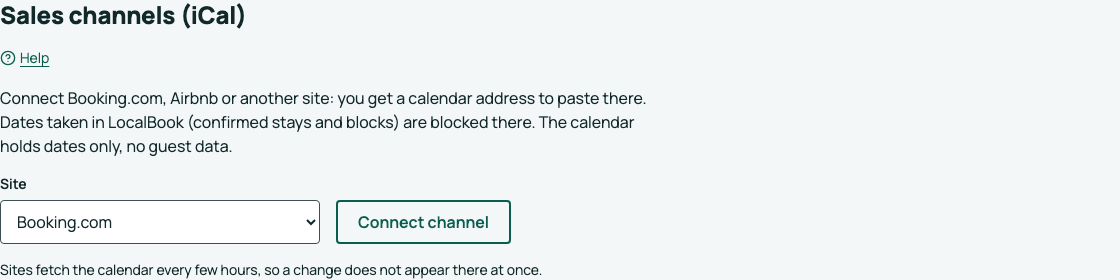
- Under Sales channels (iCal), click Connect channel and select the site.
- Next to Calendar address, click Copy address.
- Paste the address on the site:
- Booking.com: extranet → Rates & Availability → Sync calendars → Import calendar.
- Airbnb: Calendar → Availability → Connect calendars → Import calendar.
- A different site: find the calendar import (iCal, .ics).
Important information
- The calendar contains only dates. It does not contain guest data.
- The sites download the calendar every few hours. A change does not show there immediately. More: How calendar sync works.
- Each channel shows when the site last downloaded the calendar.
A guesthouse with rooms
On Booking.com and Airbnb each room is its own listing with its own calendar. If you rent the property by rooms, in the Channels tab choose the Room first, then the site, and click Connect channel — for each room separately. A room's calendar address shows only that room's taken days, and an import from its listing blocks dates only in that room. A calendar connected before switching to rooms belongs to the first room. A room with a connected calendar cannot be removed until you disconnect it.
New address or disconnect
- New address: the current address stops working. Paste the new address on the site. If you do not, blocks stop showing there.
- Disconnect: the address stops working. The site no longer gets the dates from LocalBook.
Next steps
To make bookings from these sites close the dates in LocalBook: Import bookings from Booking.com and Airbnb.